Logging into your native account is very easy! Simply click Log in/Sign up in the top right corner. This should take you to a pop-up which may look a little different depending on which site you’re using. Follow these steps below if you need guidance on logging into your account.
In order to direct you appropriately, please identify which which looks most similar to your site:
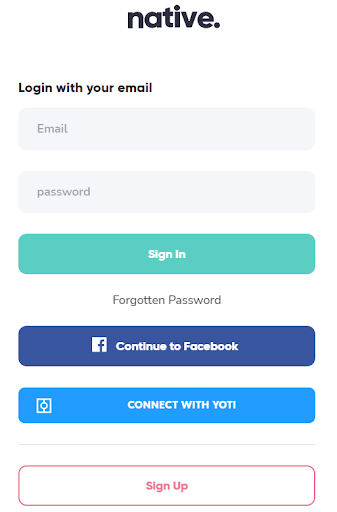 If you see this pop-up page, follow these steps on how to log in via our main native site here.
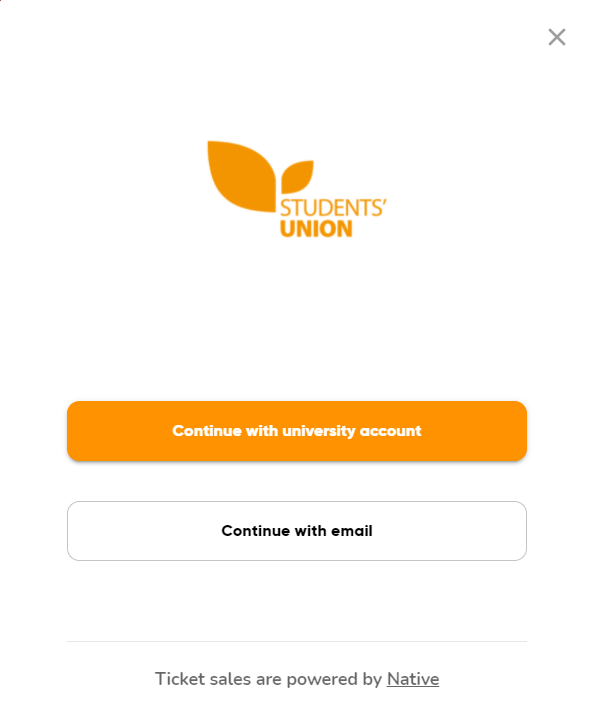 Alternatively, if you see this pop-up with your associated Students’ Union logo, follow these steps on how to log in via a Students’ Union events site here.
In This Article:
Logging in via a Students’ Union events site
Logging in via native site
If you’re logging in via the main native website (native.fm), simply enter your email address that you used to register with us and your password. If you’ve forgotten your password, don’t worry - you can reset it by clicking on ‘Forgotten Password’.
Logging in a via a Students’ Union site
If you’re logging in via a Students’ Union site, it’s a little different to the native main site.
If you’ve registered your native account using your university email address, make sure you click on ‘Continue with university account’ where you’ll be directed to your university site and prompted to sign in using your university credentials.
Alternatively, if you’ve registered your native account using your personal email address (e.g. Gmail or Hotmail etc), click ‘Continue with email’ and fill in your details.
Comments
0 comments
Please sign in to leave a comment.